Cable Modem Buying Guide: Picks, Speeds and Providers
This cable modem buying guide starts with the model your provider approves for your exact plan. Then match its speed and Ethernet connections to your service, and decide whether you need a modem only or a modem router combo.
On this page (9 sections)
- How do you use this cable modem buying guide?
- Which modem setup fits your home?
- What do DOCSIS and modem speed numbers mean?
- Which cable modem should you consider?
- How do you check provider compatibility?
- What do you need before setting up a modem?
- What common cable modem buying mistakes should you avoid?
- How should you care for and use a cable modem?
- Which cable modem should you buy?
This cable modem buying guide starts with provider approval for your exact plan, then matches speed and connections to your home network. Decide whether you want a modem only with a separate router, or a combo that provides cable access and Wi-Fi in one device.
The four picks below cover different setups: a straightforward DOCSIS 3.1 modem, two choices for faster plans or Ethernet, and a modem router combo. Check your provider's current compatibility information before buying, since model support and plan limits can differ.
For more standalone choices, see our best DOCSIS 3.1 cable modems. If you use Xfinity, our Xfinity modem guide can help narrow the provider-specific options.
How do you use this cable modem buying guide?
Use this cable modem buying guide to check approval, match plan speeds, choose a network setup and confirm activation. That order catches the issues most likely to make a modem unsuitable before you compare convenience features.
Start by checking the provider's current approved-device information. Search for the exact model number and confirm that it works with your plan tier, rather than relying on the brand name or a general statement that a modem supports cable internet.
Next, compare the modem's supported downstream and upstream speeds with your service. The speed printed in a model name or description is a hardware capability, not a change to the speed included in your plan.
Then decide whether you want a separate modem and router or a combo. A modem-only device needs a router or mesh system for Wi-Fi; a combo includes routing and wireless functions in the same unit.
Finally, check the Ethernet ports, voice-service needs and activation process. If any one of those does not fit your home or account, a higher headline speed will not make the modem the right choice.
What should a cable modem buying guide compare first?
A useful cable modem buying guide compares provider approval, plan support and network type before brand or extra features. These checks help rule out models that cannot serve your account or cannot connect to the equipment you plan to use.
| Check | What to confirm | Why it matters |
|---|---|---|
| Provider approval | Exact model and service tier | An unsupported model may not activate |
| Plan speed | Download and upload capabilities | The modem does not raise your service tier |
| Modem type | Modem only or combo | Modem-only devices need a separate Wi-Fi system |
| Ethernet | Port speed and number of ports | Your router or wired device needs a compatible connection |
| Voice needs | Support for bundled phone service | Some models exclude voice plans |
| Activation | Provider steps and account requirements | Self-owned equipment still needs to be added to service |
A model may be approved for a provider while still being limited on a particular plan. Check the plan-specific details before deciding, especially when you are moving to a faster tier.
If you need a plain-language explanation of the device, read what a cable modem is and how it works. For a comparison of separate devices and all-in-one units, see modem vs gateway.
Which modem setup fits your home?
Choose a modem-only device if you want to use a separate router, or a combo if you want cable access and Wi-Fi in one unit. The choice comes down to the equipment you already have and how much flexibility you want for future upgrades.
With separate devices, the modem connects to your cable provider and the router creates your home Wi-Fi network. You can replace one without replacing the other, but you need room for both devices, their power adapters and the Ethernet connection between them.
A combo combines those functions. It can reduce the number of devices and setup connections, while making a future router upgrade more likely to involve replacing the whole unit.
A modem-only model is a poor fit if you expect the modem itself to broadcast Wi-Fi. A combo may be a poor fit if you already own a router you want to keep, or if its provider-specific plan limit falls short of your service.
If you want to compare all-in-one options, browse our best cable modem router combos. Check each combo's plan limits for your provider before you choose one.
Should you keep a separate router?
Keep a separate router if you want to choose your Wi-Fi equipment independently or already have a router or mesh system that meets your needs. A modem-only pick can work well in that setup, provided its Ethernet connection suits the router and plan.
The SB8200 and CM2500 each have two Gigabit Ethernet ports. The MB8611 has one 2.5 Gbps port, which makes it a different fit for compatible faster Ethernet equipment.
A separate router also gives you a choice about Wi-Fi coverage. The modem does not determine how far a wireless signal reaches through walls or across rooms; that depends on the router or mesh system and your home's layout.
When is a modem router combo the simpler choice?
A combo is useful when you want one device to handle the cable connection and Wi-Fi. The NETGEAR CAX30 combines a DOCSIS 3.1 modem with dual-band Wi-Fi 6 and includes four Gigabit Ethernet ports for wired devices.
The convenience has a tradeoff: the CAX30 has different plan limits for Xfinity, Spectrum and Cox. It is also not compatible with bundled voice plans, so check both your provider and your account needs before choosing it.
A combo is not automatically the better value just because it has fewer pieces. Consider whether you already have a router, whether you may want to replace it separately, and whether the combo's coverage and provider limits suit your home.
What do DOCSIS and modem speed numbers mean?
DOCSIS is the cable technology a modem uses to communicate with your provider, while your plan and provider determine the service speed you receive. A modem's maximum supported speed shows capacity, not the speed every household will see.
DOCSIS 3.1 is common among modems intended for gigabit and faster cable plans. It is a useful feature to compare, but it does not prove that a specific model is approved for your provider or plan.
Look at both download and upload support. Downloads matter for large files and streaming, while uploads can matter when sending files, joining video calls or streaming live content.
The provider's plan remains the limit in either direction.
The listed maximums also need context. The CM2500 supports up to 2 Gbps downstream and 1 Gbps upstream.
The MB8611 supports up to 2,500 Mbps downstream and 800 Mbps upstream when the provider plan supports it.
Ports affect how the modem connects to your router or wired device. A faster modem connection only helps when the connected equipment and service can use it.
The SB8200 and CM2500 have two Gigabit Ethernet ports, while the MB8611 has a single 2.5 Gbps port.
For service around 1 Gbps or faster, our gigabit modem guide explains what to check. If cable is one of several service types available to you, compare cable internet and fiber.
Which cable modem should you consider?
Choose among these four models based on provider approval, plan limits, Ethernet needs and whether you want Wi-Fi built in. Each one serves a different setup, so the right fit depends on what your account and home network need.
ARRIS Surfboard SB8200: for a separate-router setup
The ARRIS Surfboard SB8200 is a DOCSIS 3.1 modem with two 1 Gigabit Ethernet ports. ARRIS says it is tested and qualified for Cox, Xfinity and Spectrum; confirm the exact model's support with your provider.
Choose the SB8200 if you want a compact modem-only unit and already have, or plan to add, a router. It is not a fit if you expect the modem to provide Wi-Fi, or if your service is fiber, DSL or satellite.
The two Ethernet ports can support a router connection, but do not assume that combining ports will increase your internet speed in every setup. Confirm what your provider and router support before planning around an aggregated connection.
NETGEAR Nighthawk CM2500: for supported faster cable plans
The NETGEAR Nighthawk CM2500 is a modem-only DOCSIS 3.1 model that supports plans up to 2 Gbps download and 1 Gbps upload. It works with Xfinity, Spectrum, Cox and most US cable providers, subject to plan compatibility and provider activation.
Pick the CM2500 if you want to keep your router separate and your provider confirms that the model and plan are supported. The Nighthawk app offers guided setup and modem status tools, which can help if you prefer app-based setup.
Skip it if your account includes a bundled voice plan. It also needs a separate router or mesh system for Wi-Fi, and the advertised multi-gig capability depends on compatible service and network equipment.
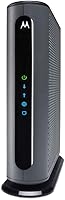
Motorola MB8611: for a compatible 2.5 Gbps connection
The Motorola MB8611 is a DOCSIS 3.1 modem with one 2.5 Gbps Ethernet port. Motorola lists compatibility with Xfinity, Cox and Spectrum, with support depending on the provider tier.
Choose the MB8611 when you want a single faster Ethernet connection to a compatible router or computer. Its stated maximums are up to 2,500 Mbps downstream and 800 Mbps upstream when supported by your plan.
This is not the choice for someone who needs Wi-Fi or telephone calling from the modem. You will need a separate router for wireless access, and a single Ethernet port may not suit a setup that needs multiple direct wired connections from the modem.
NETGEAR Nighthawk CAX30: for an all-in-one cable and Wi-Fi setup
The NETGEAR Nighthawk CAX30 combines a DOCSIS 3.1 cable modem and dual-band AX2700 Wi-Fi 6 router. Its stated plan limits are up to 800 Mbps with Xfinity and up to 1 Gbps with Spectrum or Cox.
Choose the CAX30 if you want one unit for cable and Wi-Fi, plus multiple wired connections for devices such as a game console or desktop computer. NETGEAR says its Wi-Fi covers up to 2,000 square feet, though actual coverage depends on the home and its building materials.
Skip it if your plan exceeds the model's limit for your provider, if you already prefer a separate router, or if you have bundled voice service. The four wired ports can simplify connections around the device, but they do not replace Wi-Fi coverage planning in a larger or divided home.
How do you check provider compatibility?
Check your provider's current approved-device list for the exact model and plan before buying. Support can vary by tier and account features, even when the modem is generally compatible with that provider.
Search for the model number, not just the brand. Confirm the provider supports the model on your download and upload tier, and ask whether your account requires a separate activation step.
For provider-specific information, see our guides to Xfinity compatible modems, Spectrum approved modems, Cox approved modems and Optimum compatible modems.
If you use a home phone through your cable provider, verify voice support separately. Internet compatibility does not mean a modem supports bundled phone service, and the CM2500 and CAX30 are not compatible with bundled voice plans.
Also confirm that you are buying equipment for cable internet. The SB8200 is not compatible with fiber, DSL or satellite service, and the CM2500 and CAX30 are made for US cable internet.
What do you need before setting up a modem?
A modem-only setup needs a coax connection, power and a router or wired device, along with provider activation. A combo includes Wi-Fi routing but still needs the cable connection and service activation.
Before you disconnect the old device, check your provider's instructions for replacing equipment. Keep any account or activation information you need close by, and confirm that the new model has been added to your service.
Place the modem where its coax connection can reach without stretching or sharply bending the cable. Leave room around the device and keep its power adapter accessible, so you can check connections or restart it if needed.
Connect the coax cable and power, then connect Ethernet from a modem-only unit to your router or a wired device. For a combo, follow the provider's activation instructions and then configure the Wi-Fi network through its available setup method.
The CM2500 and CAX30 support guided setup with the Nighthawk app; the CM2500 can also be set up through a web browser. The SB8200 instructions describe connecting cable and power, then activating with the provider and adding a router for Wi-Fi.
For the router connection, follow our step-by-step modem to router guide. Our Ethernet cable guide can help you choose a cable for the modem-to-router connection.
How can you tell whether activation worked?
Check that the modem comes online after the provider finishes activation. Use the modem's status indicators or setup app where available, then confirm that a connected device can reach the internet.
If the modem does not connect, check that the coax and power cables are seated, confirm the provider has the correct model on your account, and repeat any activation step the provider requires. Restarting before activation is complete will not add the device to your account.
If you still have a connection problem, use our guide to modem lights and what they mean or fixing a modem that won't connect. These checks can help distinguish a connection or activation issue from a Wi-Fi coverage problem.
What common cable modem buying mistakes should you avoid?
The most common buying mistakes are skipping plan-specific approval, mistaking modem speed for plan speed and forgetting the router. A few checks before checkout can prevent a modem that cannot activate or cannot serve the network you want.
Don't rely on a provider logo or a broad compatibility claim by itself. Look up the exact model and your plan tier, especially if you are moving to a faster service level.
Don't assume a high maximum speed will raise the speed of your current plan. The plan, provider network and connected equipment all affect what you can receive.
Don't buy a modem-only unit expecting Wi-Fi. The SB8200, CM2500 and MB8611 require a separate router or mesh system for wireless coverage.
Don't assume every Ethernet port supports the same speed or that more ports mean faster service. Match the modem's port setup to your router and wired devices.
Don't forget account features. Bundled voice support and activation requirements can matter as much as speed, and some models on this list exclude voice plans.
Finally, don't overlook the service type. Cable modems are not a substitute for a fiber, DSL or satellite gateway unless the provider specifically supports the device for that service.
How should you care for and use a cable modem?
Keep a modem in a stable, ventilated place where you can reach its cables and status lights. Good placement makes it easier to keep connections secure and notice a power or signal issue.
Avoid trapping the modem behind other equipment or inside a crowded space. Give it room for airflow and avoid placing items on top of it, especially if the area tends to get warm.
Keep the coax and Ethernet cables firmly connected, but don't pull them tight or bend them sharply. If you move the modem, reconnect each cable to the correct port and allow it to come back online before troubleshooting Wi-Fi.
Use the provider's or modem's available status tools to check whether the cable connection is online. If a problem appears, verify activation and cabling first; changing Wi-Fi settings will not fix a modem that has lost its provider connection.
Keep setup information and account details somewhere you can find them if you need to replace equipment. If you change providers or plan tiers, check compatibility again before assuming your current modem remains suitable.
Which cable modem should you buy?
Buy the model your provider approves for your exact plan, account features and network setup. Choose the SB8200 for a modem-only setup with two Gigabit Ethernet ports, the CM2500 for a supported plan up to 2 Gbps downstream, the MB8611 for a compatible 2.5 Gbps connection, or the CAX30 when you want modem and Wi-Fi functions in one unit.
If you already own a router, focus on the modem-only choices and make sure the port and plan fit. If you want one device, compare the CAX30's provider-specific limits with your service before choosing it.
This cable modem buying guide comes down to one decision rule: verify compatibility first, then buy only the speed and network setup your home can use. For more standalone options, compare our best DOCSIS 3.1 modems.
Frequently asked questions
How do I choose a cable modem?
Start with your cable provider's approved modem list and confirm that the exact model supports your plan. Compare the modem's download and upload capabilities with your service, check its Ethernet connections, and decide whether you need a separate Wi-Fi router or an all-in-one combo.
Confirm activation steps before disconnecting your old modem.
Do I need DOCSIS 3.1 for gigabit internet?
DOCSIS 3.1 is a practical starting point when shopping for gigabit cable service, but provider approval and plan support still matter. Check the provider's list for your exact tier, then confirm the modem's Ethernet connection can serve your router or wired device.
A DOCSIS label alone does not confirm compatibility.
Can I use my own cable modem with Xfinity?
Often, but confirm the exact modem against Xfinity's current compatibility information and your plan. Some models have plan limits or do not support bundled voice, and a self-owned modem still needs provider activation.
Make sure your router is ready if you choose a modem-only model.
Should I buy a modem router combo?
A combo can simplify setup by putting cable access and Wi-Fi in one device, while separate devices let you replace or upgrade the modem and router independently. Compare the combo's provider and plan limits with your service, then consider the Wi-Fi coverage and wired connections your home needs.
Will a new modem increase my internet speed?
A modem can remove a hardware limit when your current device cannot support the speed tier you pay for, but it cannot raise the speed in your plan. Provider capacity, Wi-Fi coverage, router performance, wiring and connected devices also affect the speed you see.
Check each part before replacing equipment.